Quickstart
Run Ballet on your machine, plan two tickets, and watch agents do them. This uses a fake model and a local git repository, so it needs no API key and touches nothing outside your machine.
Note
The fake model does not write code: it runs the tool call a message
names in a /tool <name> <json> line and echoes the result. That is
enough to see every step of Ballet’s flow — planning, approval,
pipeline stages, questions, merge and the digest. Your first real project
swaps in a real model.
What you need
Linux or macOS with
git,makeand Python 3;Claude Code — the agent runtime sessions run:
npm install -g @anthropic-ai/claude-code
1. Start Ballet
git clone https://github.com/denyszorinets/ballet.git
cd ballet
BALLET_FAKE_LLM=1 make run
The first start builds the web UI and every service (a few minutes).
When it prints Ballet is running on http://localhost:8080, open that
address. There is no sign-in: locally you are the only user, an
administrator. Everything runs on your machine — Core, the knowledge
service, the LLM gateway, the fake model and one agent that runs
coding-agent sessions as local processes (Run Ballet locally).
2. Make a demo repository
In another terminal, create a small repository for the agents to work on — a bare repository stands in for GitHub:
mkdir -p ~/ballet-demo && cd ~/ballet-demo
git init -q -b main greeter && cd greeter
printf '# Greeter\n' > README.md && git add . && git commit -qm init
git clone -q --bare . ../greeter.git
echo "file://$HOME/ballet-demo/greeter.git"
Keep the printed URL.
3. Create an organization and a project
Work in Ballet belongs to projects, grouped by organization — the boundary that keeps one organization’s code, knowledge and keys apart from another’s (Domain Model).
On Organizations, create organization
acme(Acme Corporation) and open it.Under LLM credentials, save an Anthropic key: any text, e.g.
sk-fake, works with the fake model.Under New project, create project
GREET(Greeter).
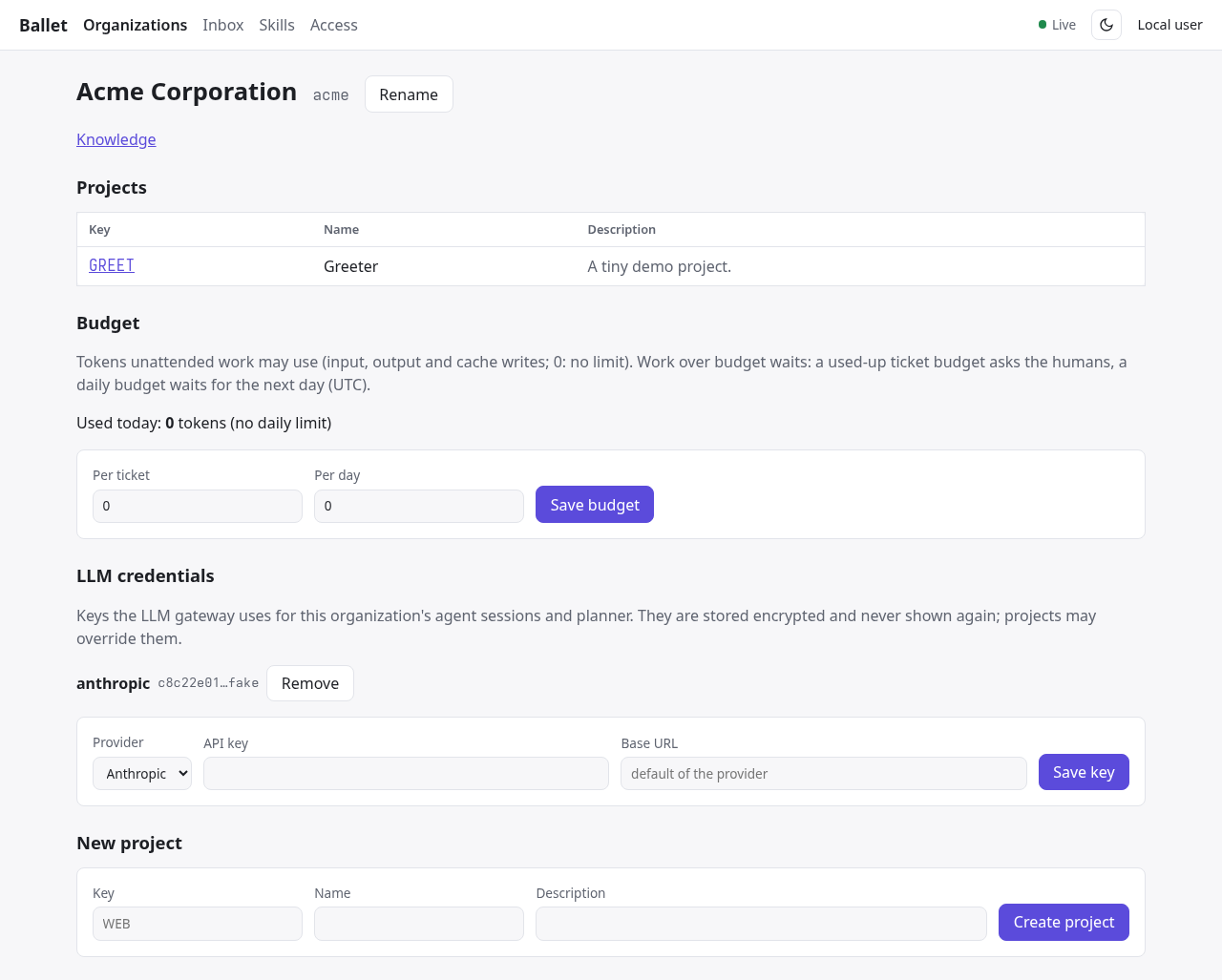
The organization page: projects, token budget and LLM credentials.
4. Point the project at the repository
Open the project and choose Settings:
Repository URL: the
file://…/greeter.gitURL from step 2;Default branch:
main;Forge: Plain git (no pull requests) — you merge by hand, Ballet notices;
Save, then under Git token save any text (a real project needs a token that can push).
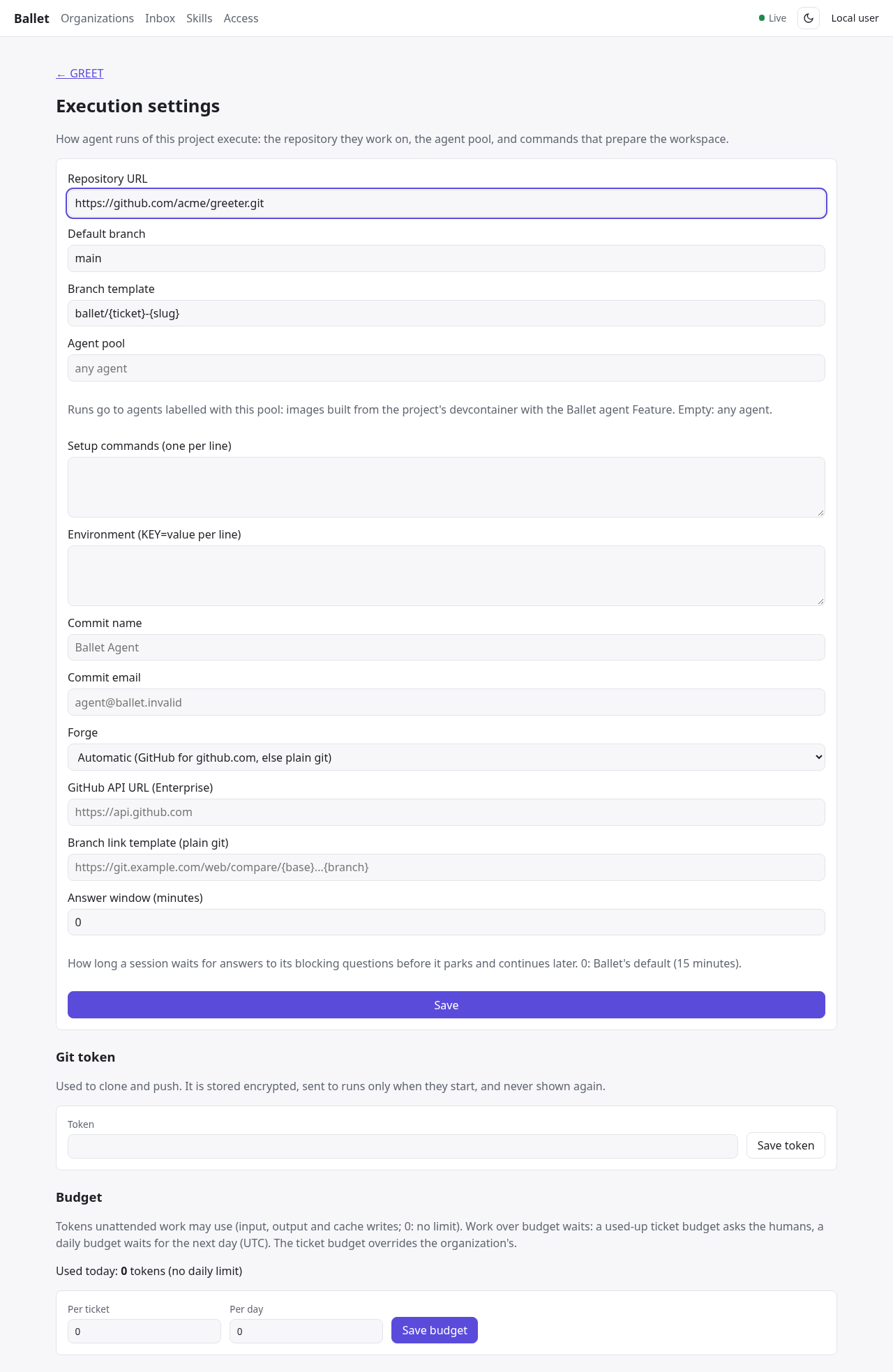
Execution settings: repository, branches, agent pool, setup commands, forge and the answer window.
5. Plan with the planner
Open Planner, start a chat with topic Greeting command and send this message (one line of prose, then the scripted tool call the fake model performs — with a real model you just describe what you want):
Plan a greeting command.
/tool propose_changeset {"title": "Greeting command", "operations": [{"kind": "create_item", "ref": "script", "create": {"kind": "ticket", "type": "feature", "title": "Add hello.sh", "description": "Add hello.sh.\n\n/tool Bash {\"command\": \"echo 'echo Hello, world!' > hello.sh && git add -A && (git commit -qm 'Add hello.sh' || true) && git push -q origin HEAD\"}", "acceptance_criteria": ["./hello.sh prints Hello, world!"]}}]}
The planner never changes the plan by itself: it proposes a changeset, and you approve all of it, some of it, or none.
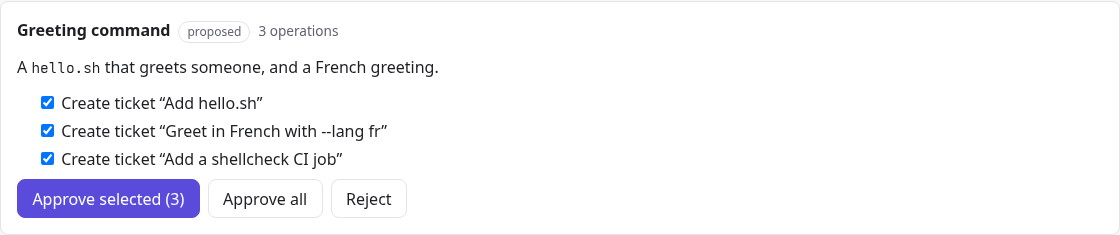
A changeset in the planner chat (here with an epic, two tickets and a dependency).
Choose Approve all. The ticket GREET-1 appears in the project’s
backlog.
6. Run the ticket
Open GREET-1 and choose Move to Ready. Within seconds the
scheduler starts its pipeline: Implement, Review and Verify —
each a separate agent session in a fresh workspace — then Integrate,
which waits for the merge. Under Agent activity every session shows
its tokens and outcome; Show session opens its live transcript,
where you can also message or interrupt a running session.
Ballet pushed branch ballet/GREET-1-add-hello-sh. Merge it, as a
reviewer would on GitHub:
cd ~/ballet-demo/greeter
git pull -q ../greeter.git ballet/GREET-1-add-hello-sh
git push -q ../greeter.git HEAD:main
Within a minute the ticket moves to Done.
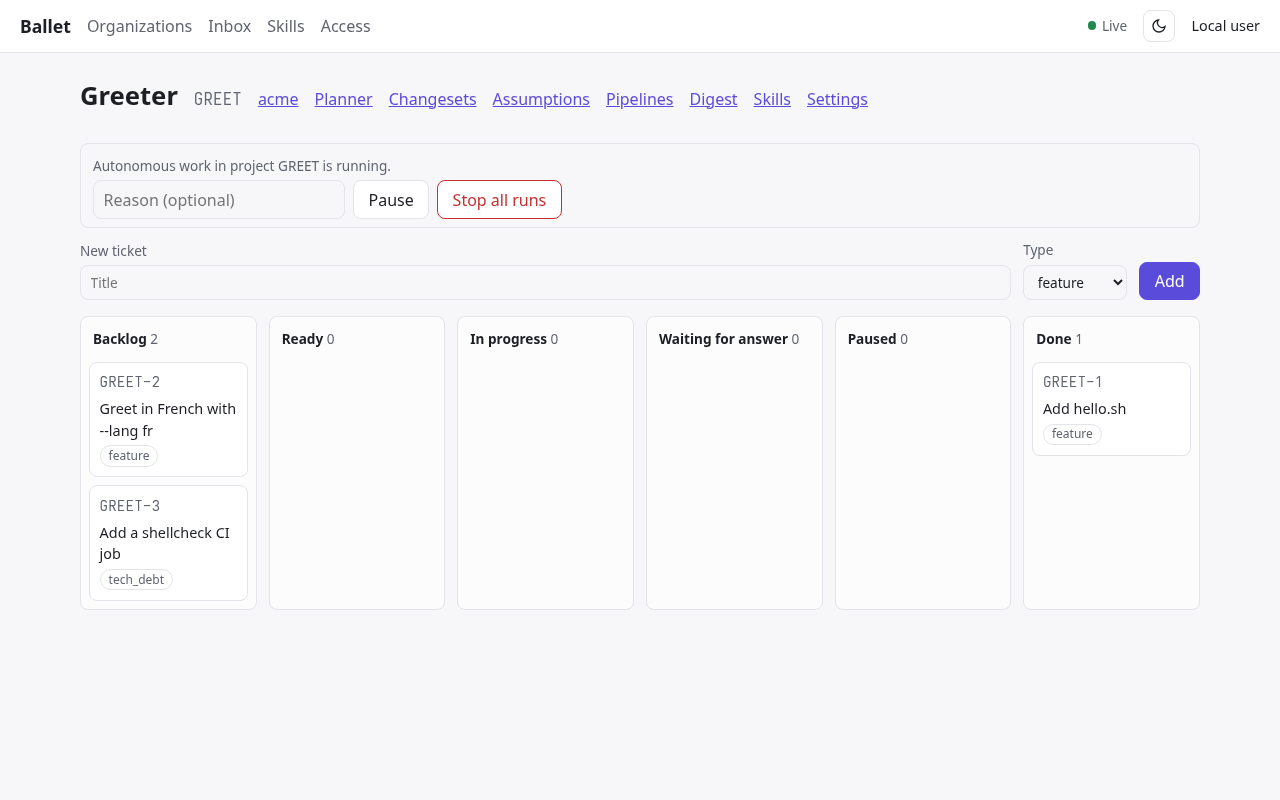
The project board.
7. Answer a question
When an agent cannot decide something safely, it asks. Add a ticket on the board, open it, choose Edit and give it this description, then move it to Ready:
/tool mcp__tracker__raise_question {"question": "Should hello.sh greet in French?", "blocking": true}
The session asks and waits. The question appears in the Inbox:
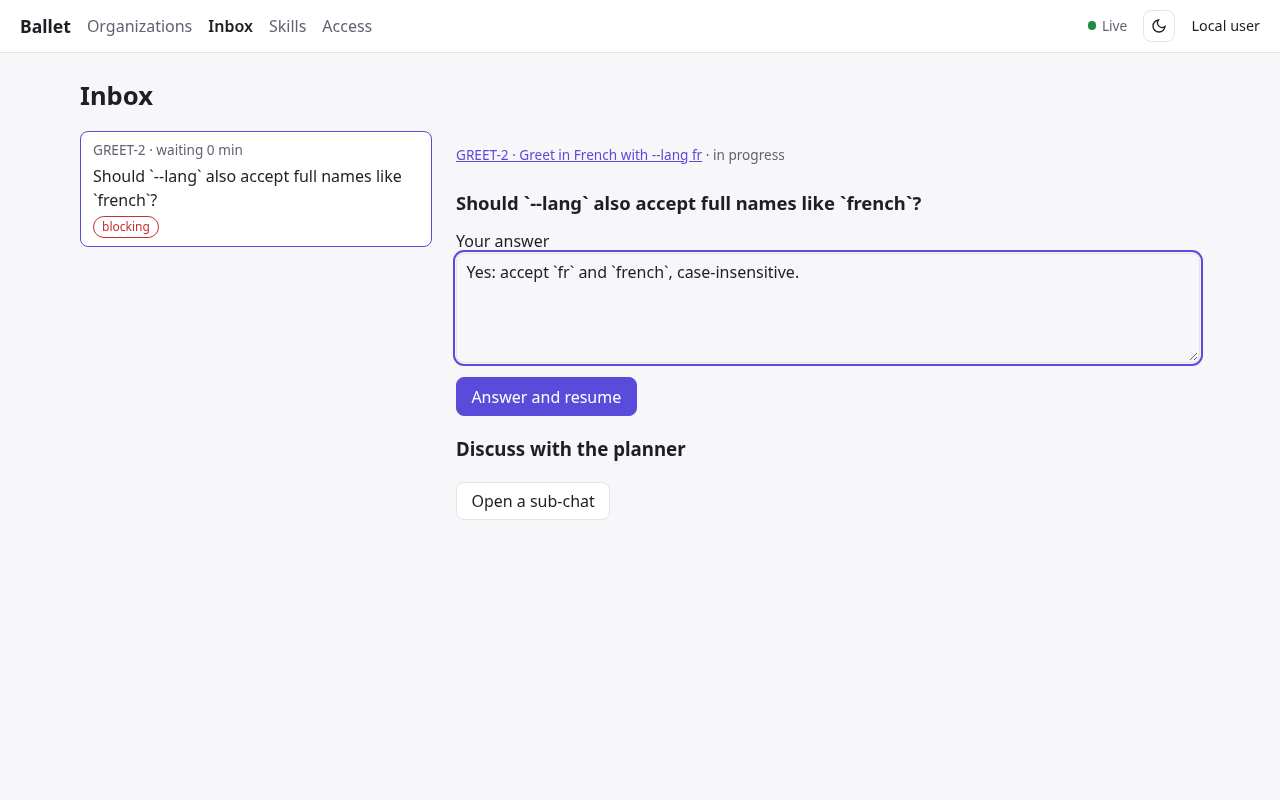
The inbox: questions waiting for a human, most impactful first.
Answer it and choose Answer and resume: within the project’s answer window (15 minutes by default) the answer goes into the same running session, which continues with its whole context. Later answers resume the session from where it parked (Questions and Human Involvement). Every answer is also saved as a decision in the organization’s knowledge base, so it is not asked again.
The fake model asks the same question again in the next stage (it only repeats the scripted line); move the ticket to Cancelled when you have seen enough.
8. Read the digest
Digest on the project page summarizes a period: tickets done and merged, sessions, tokens, questions and what is waiting — the morning read after a night of work.
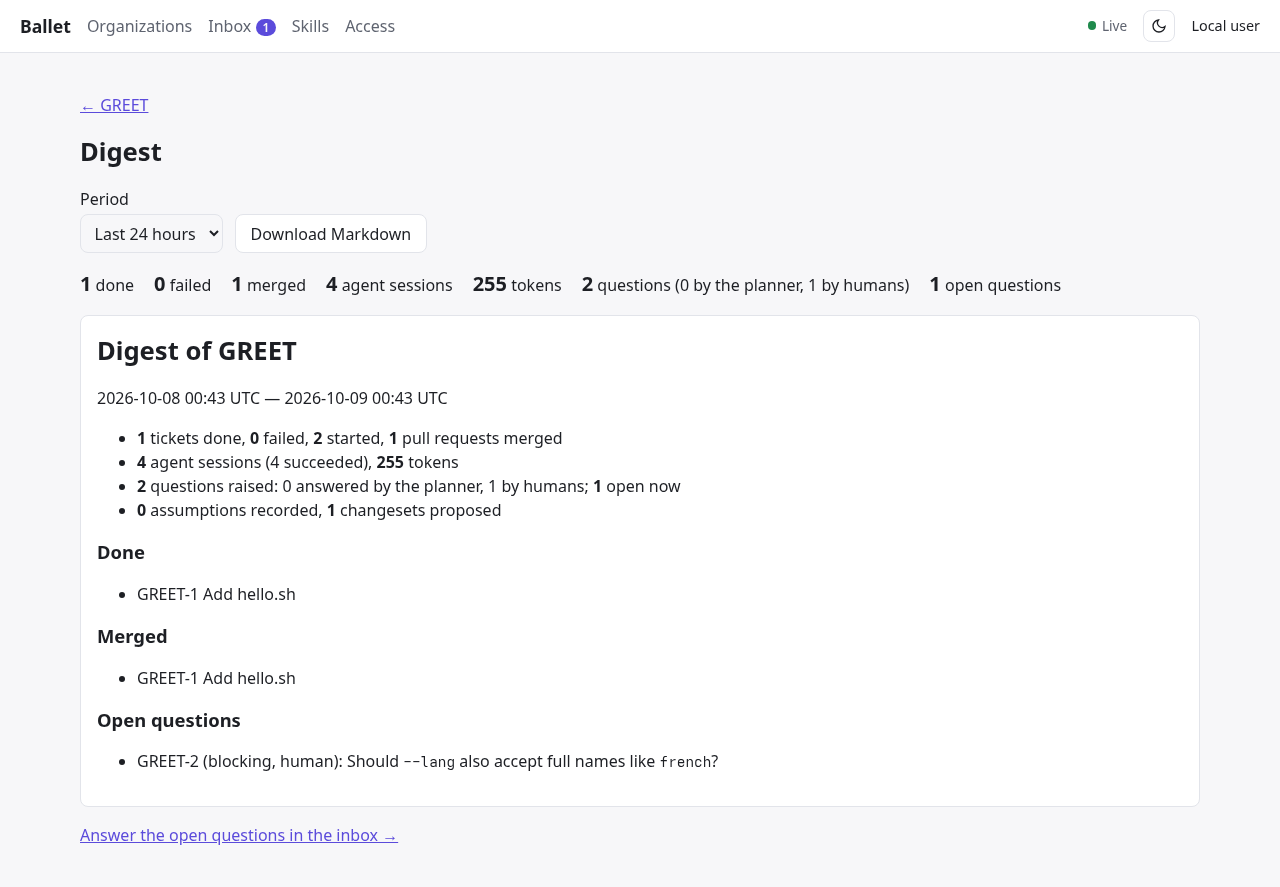
The digest.
Stop Ballet with Ctrl-C. State lives in .run/; delete it to
start over.
Next
Your first real project — a real model and a GitHub repository.
User guide — planning, tickets, sessions, questions and the night shift in depth.